TourBox Elite Plus Review: Can It Really Improve a Photographer’s Workflow?
If you are like me, a photographer who enjoys doing their own editing then it's very likely you have already heard of TourBox. A gadget that rides shotgun next to your editing workflow and is designed to reduce some of the friction between your mouse, keyboard shortcuts and tablet.
I’ve been using the TourBox Elite Plus for the last three weeks and I thought I’d share my thoughts.
Before I get into it, I should highlight that the folk over at TourBox got in touch with me and asked if I would review it here on my blog. So treat this as a sponsored review, but if you know my blog you’ll know I write for me. So this will be an honest appraisal of the things I liked, one thing I loved and some things that I think could be improved.
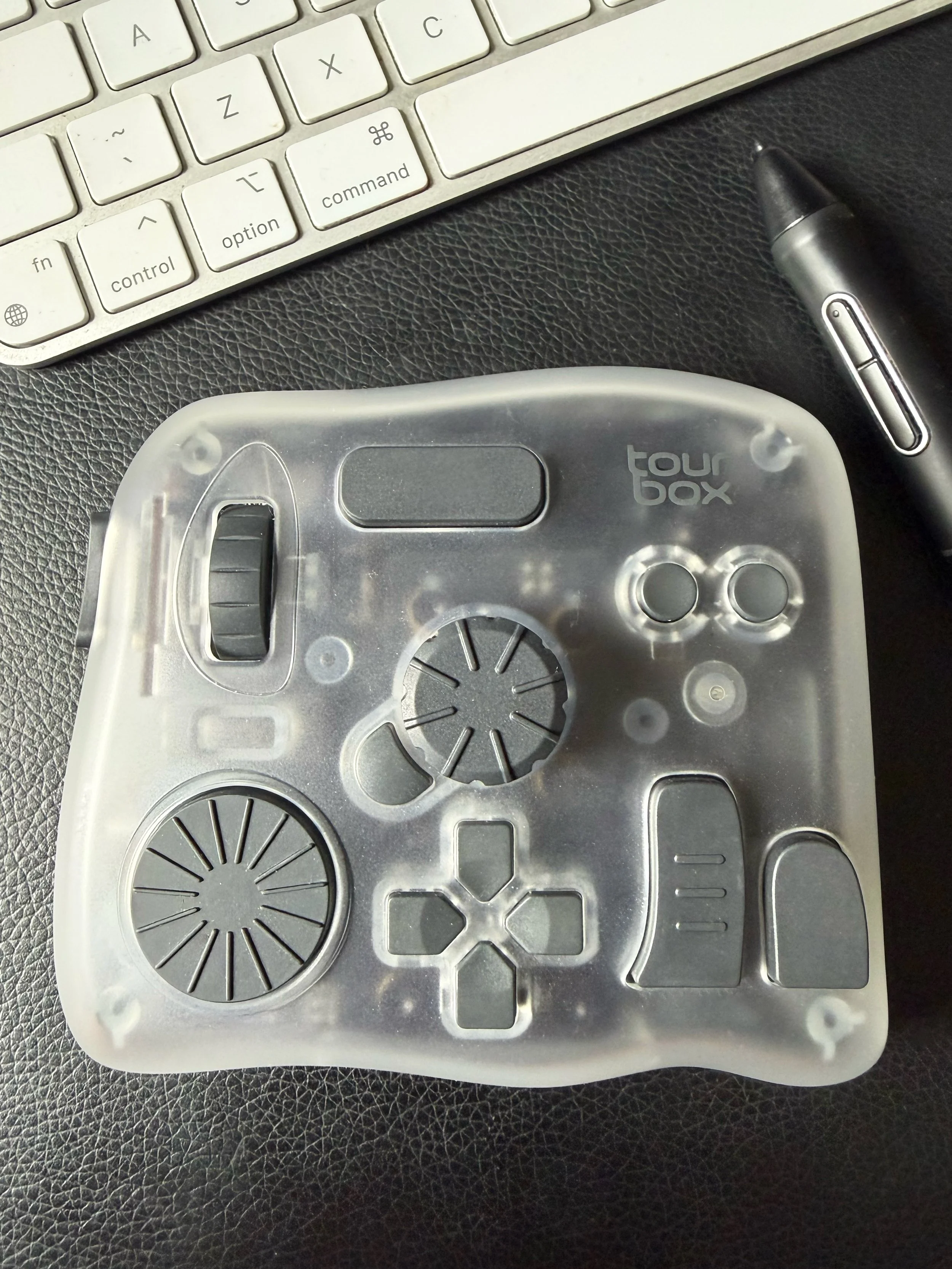
What is it?
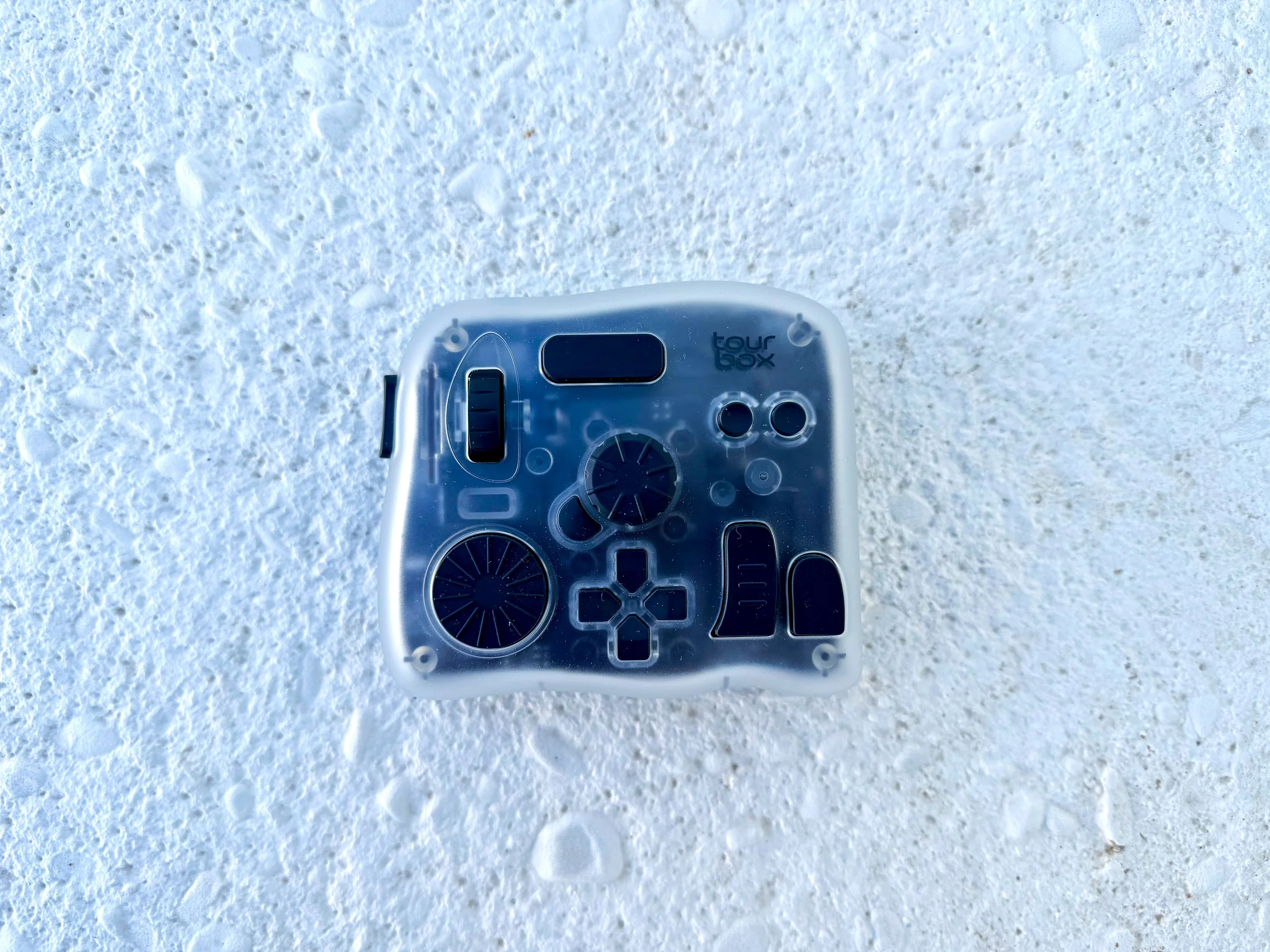
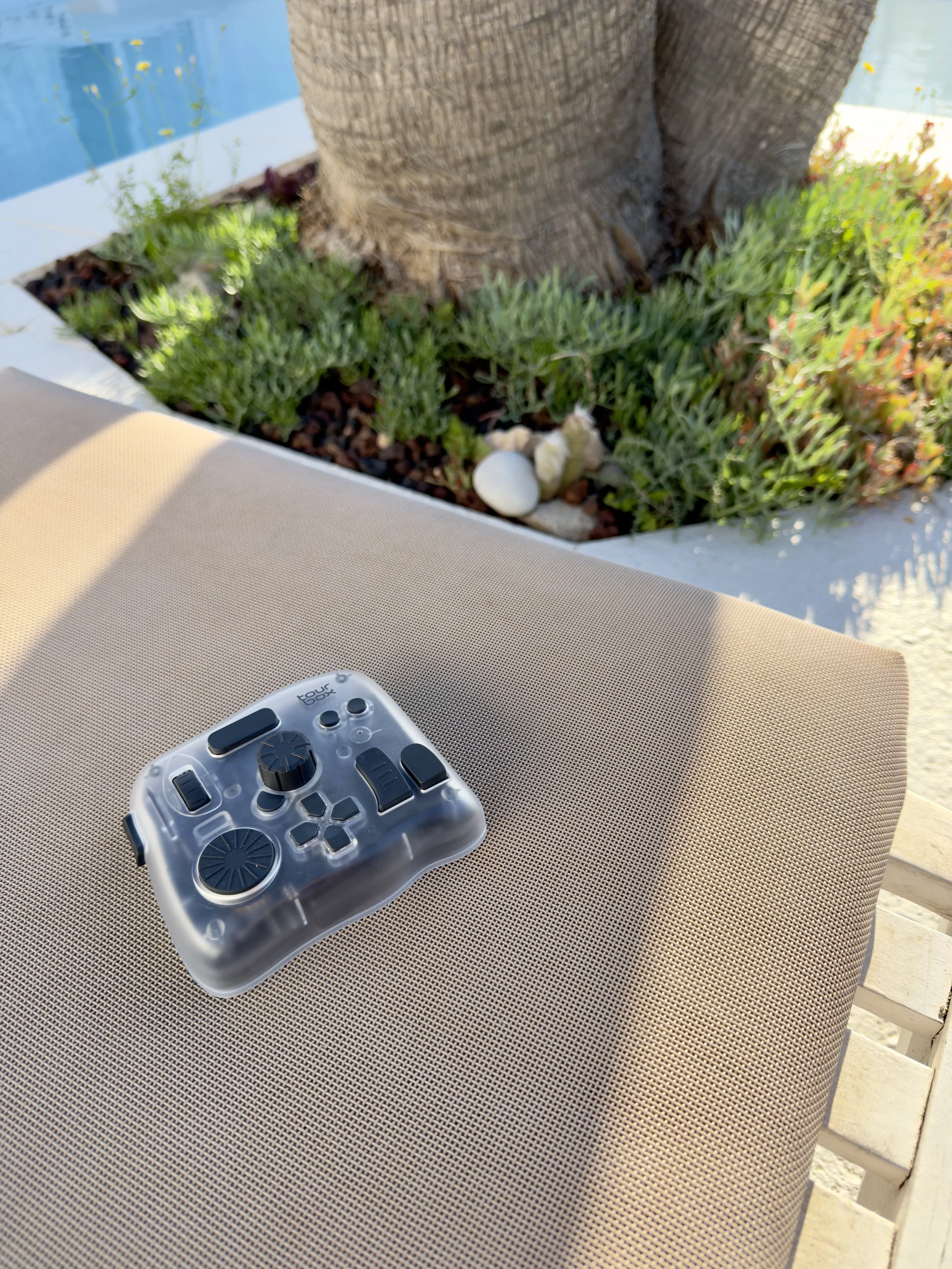
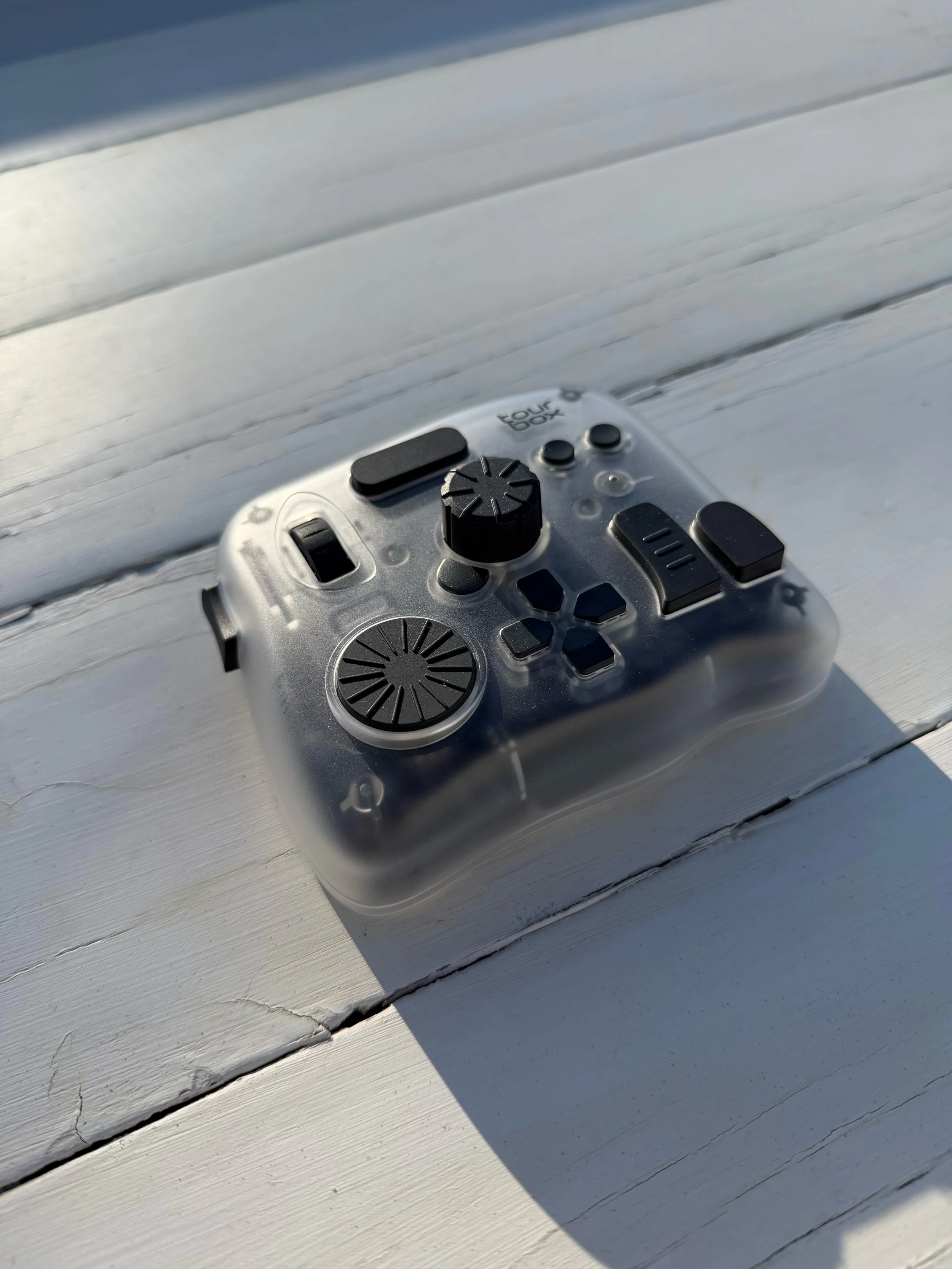
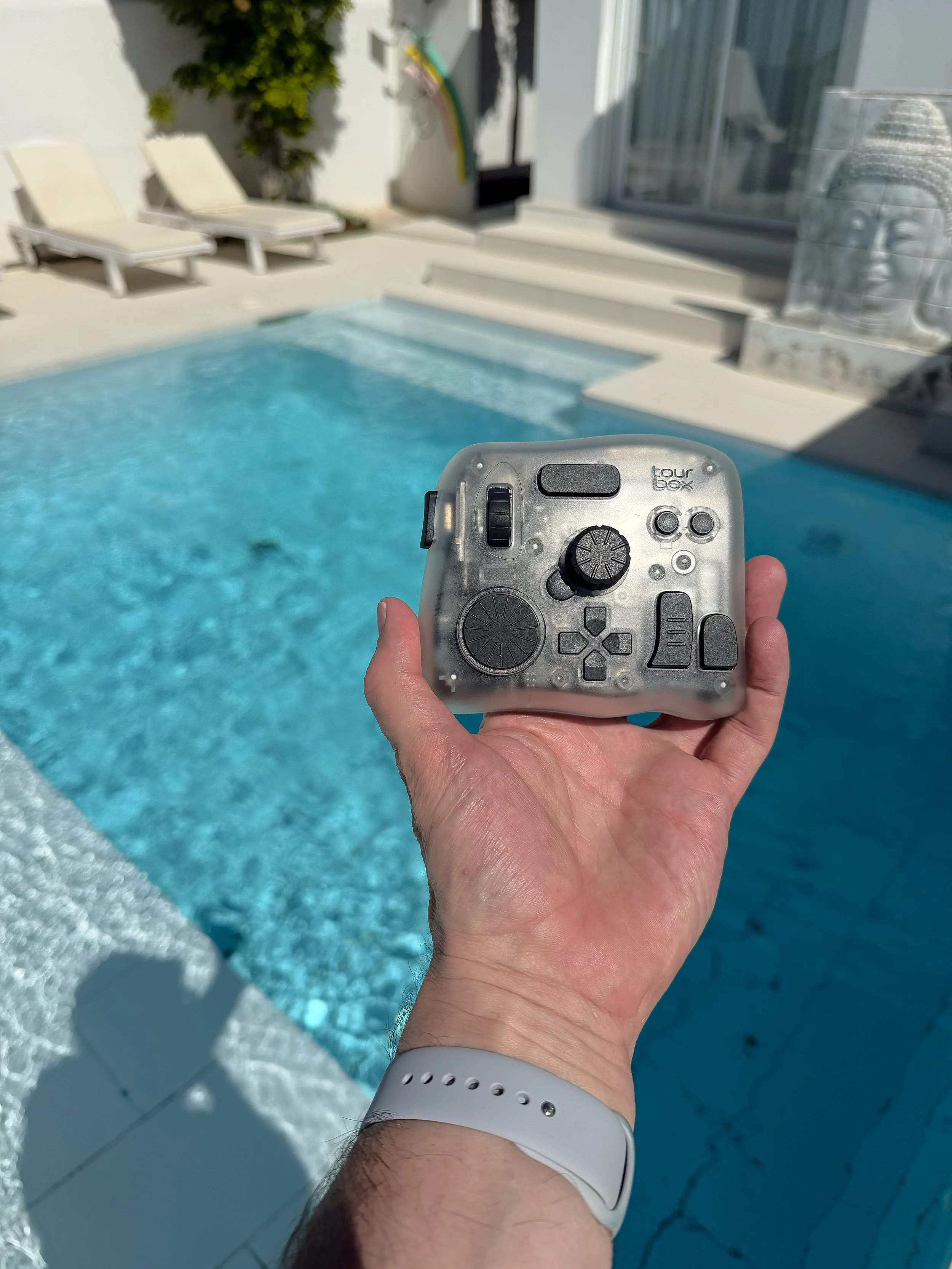
Think of TourBox as a small gadget that replicates the features you are used to adjusting in your favoured photo and video editing software. Its knobs and buttons are programmed to simulate a multitude of tools such as adjusting a brush size, or zooming in and allow you to heavily customise each button to suit how you like to work.
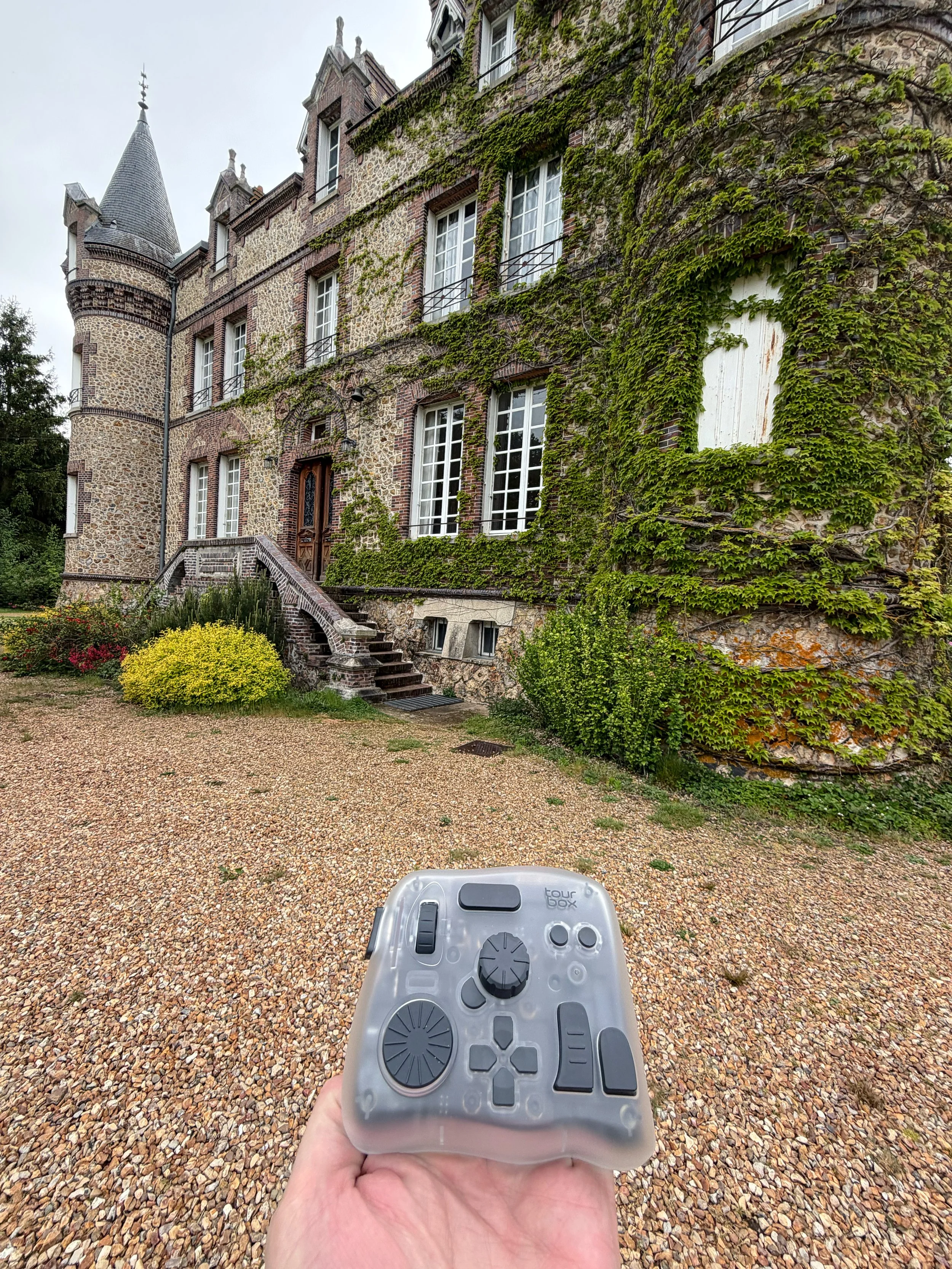
Out of the box it has a reassuring heft to it that you know won’t slide around on the table and it can be connected to your computer via Bluetooth or USB. My version came in a snug carry case so you can take it on ‘tour’. So I did exactly that. This review is based on my experience using it in France, Spain and the UK.
Workflow
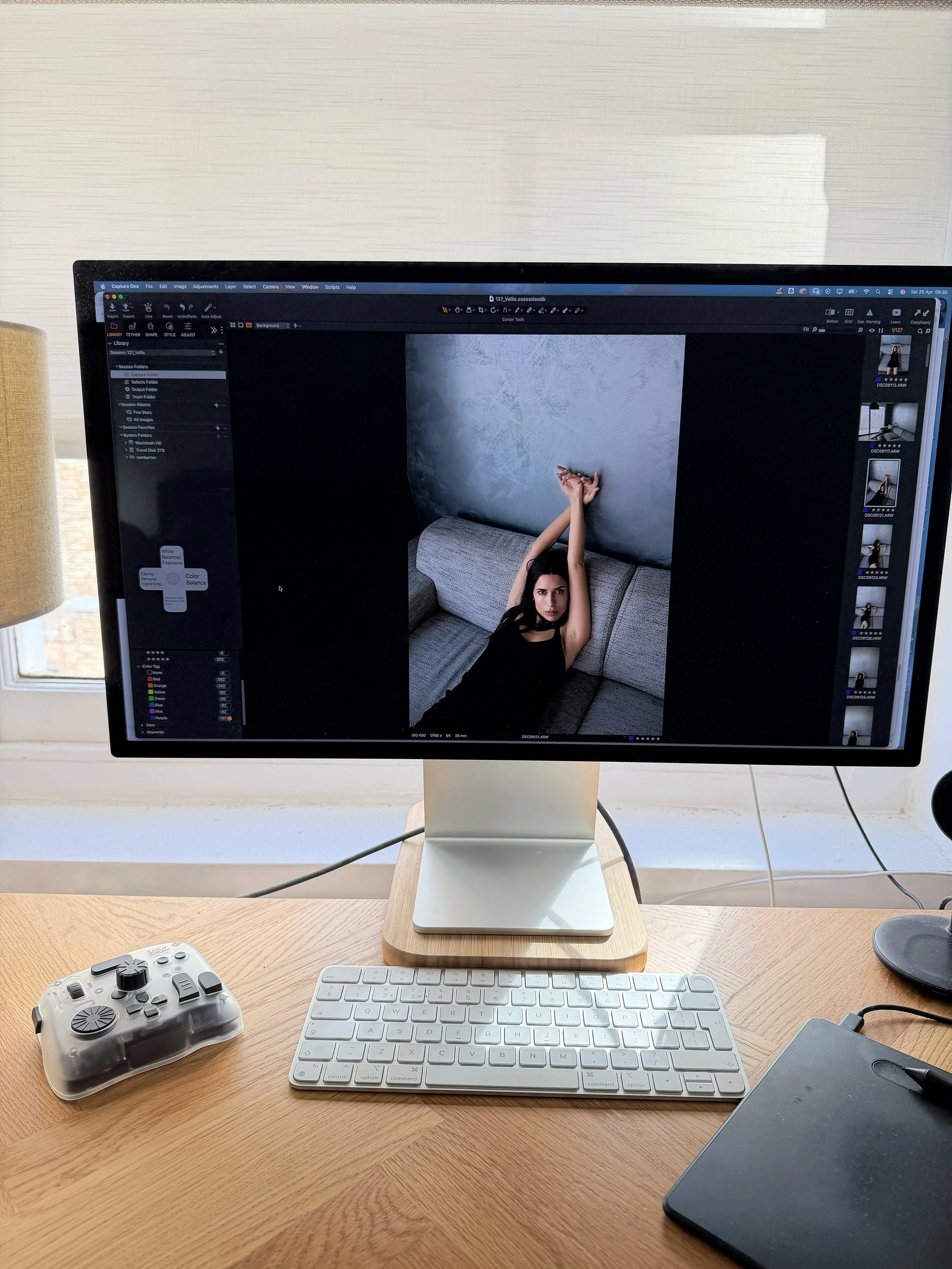
When Bobby wrote to me asking if I’d be interested in doing this review he asked if this would suit my workflow. It’s an interesting question and one I think deserves starting with. I have a friend, Dave, who edits on his laptop with just his trackpad whilst lying on a sofa. An extra gadget would get in the way of his workflow. But for me, someone who favours editing at a desk there is a natural location, to the left of my tablet for its relatively small footprint. I think it’s also relevant to say that I am right-handed.
Next up, it’s down to the tools you use. I use Capture One and Photoshop, both of which are supported by TourBox. I also have a relatively common hybrid of a Mac keyboard, a tablet (Huion, we’ll get into that later) and a mouse. So technically, my workflow is directly compatible.
But Bobby’s unspoken question was more centred around ‘does it fit with how you like to edit’ and I think that is the most interesting point.
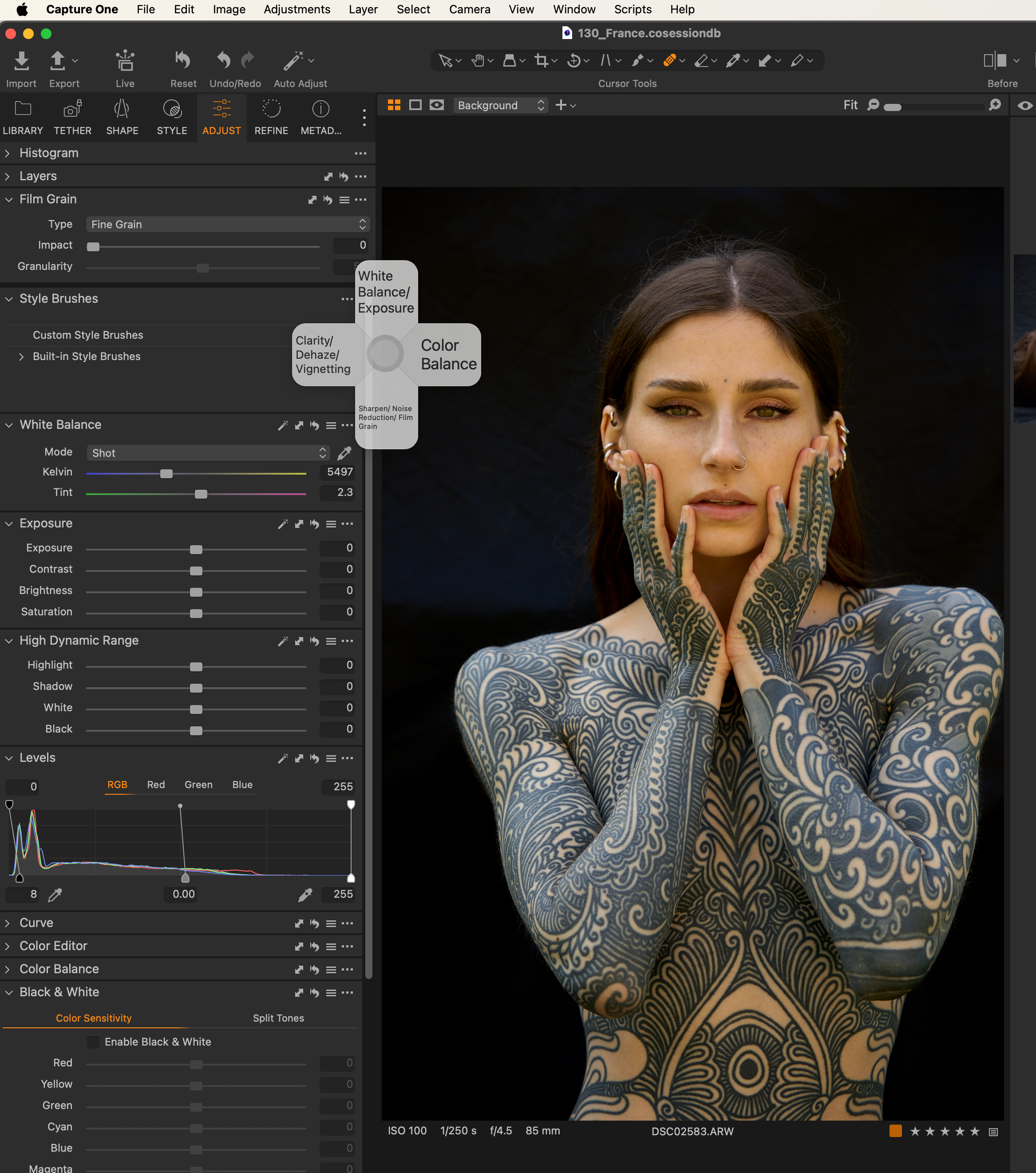
Vallie in frame inside Capture One.
Muscle Memory
If you are still reading this it’s likely that some of these points are relevant and if that’s the case, it’s also likely you have a way of doing things. You’ll have a first step (editing a raw file) a second step (retouching) a third step (colour grading) and so on. However you like to edit, it’s likely to be a tried and tested process and one that includes shortcuts and stylus or mouse taps that you repeat again and again with each new file. That becomes habitual, a form of muscle memory that is hard to break. Here lies the other challenge. Are you willing to introduce a change to that process? Can you retrain yourself? Will your fingers cope with that adjustment?
There’s no question that photographers like their kit. Buying a new gadget is in our DNA. I’ve seen the adverts for TourBox and was indeed interested. But I wasn’t sure if I was able to adapt to suit. Old dogs, new tricks etc.
So it comes down to one very simple question. Can this gadget improve the way you work today? That is how I’ll frame this review.
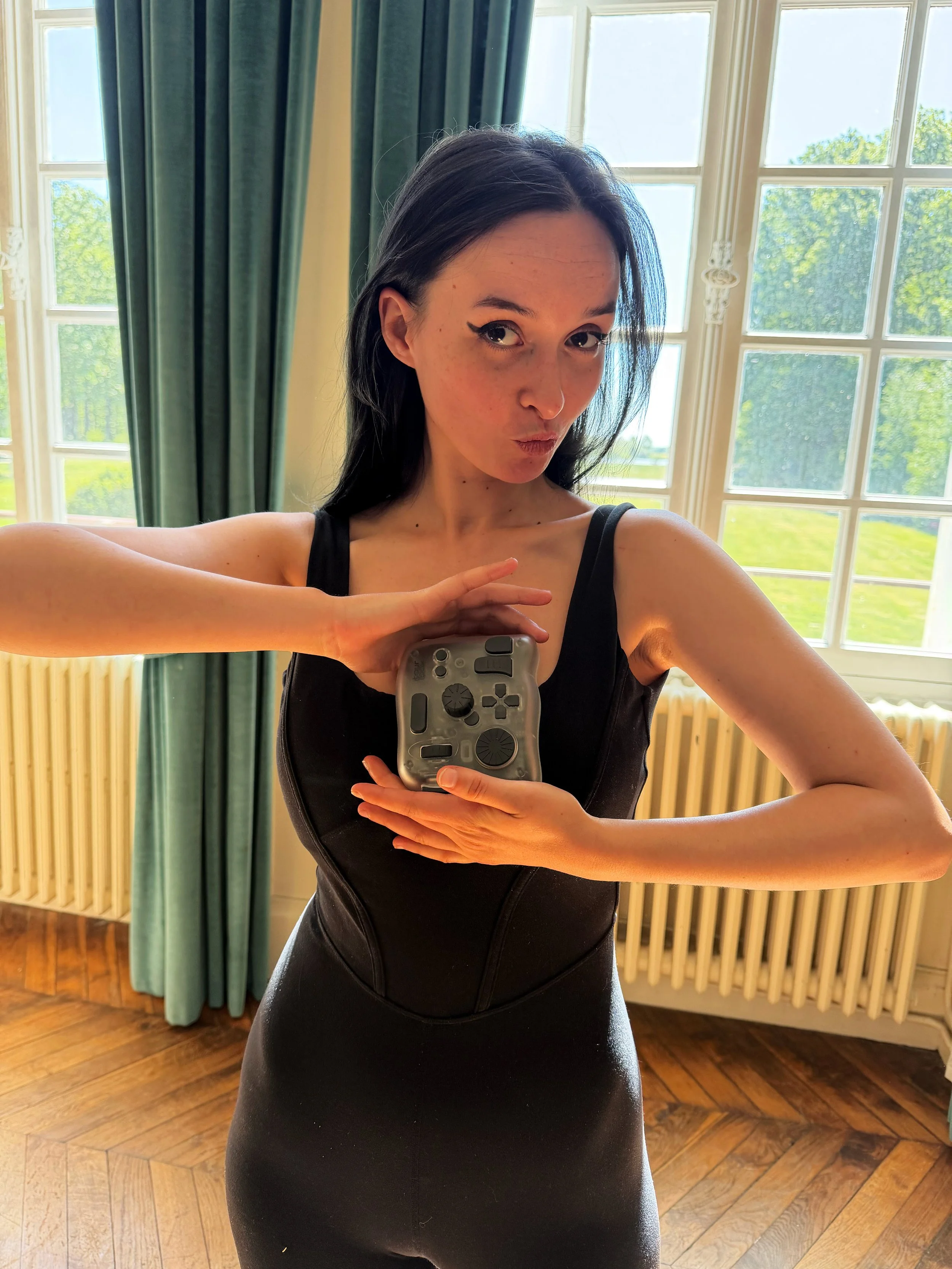
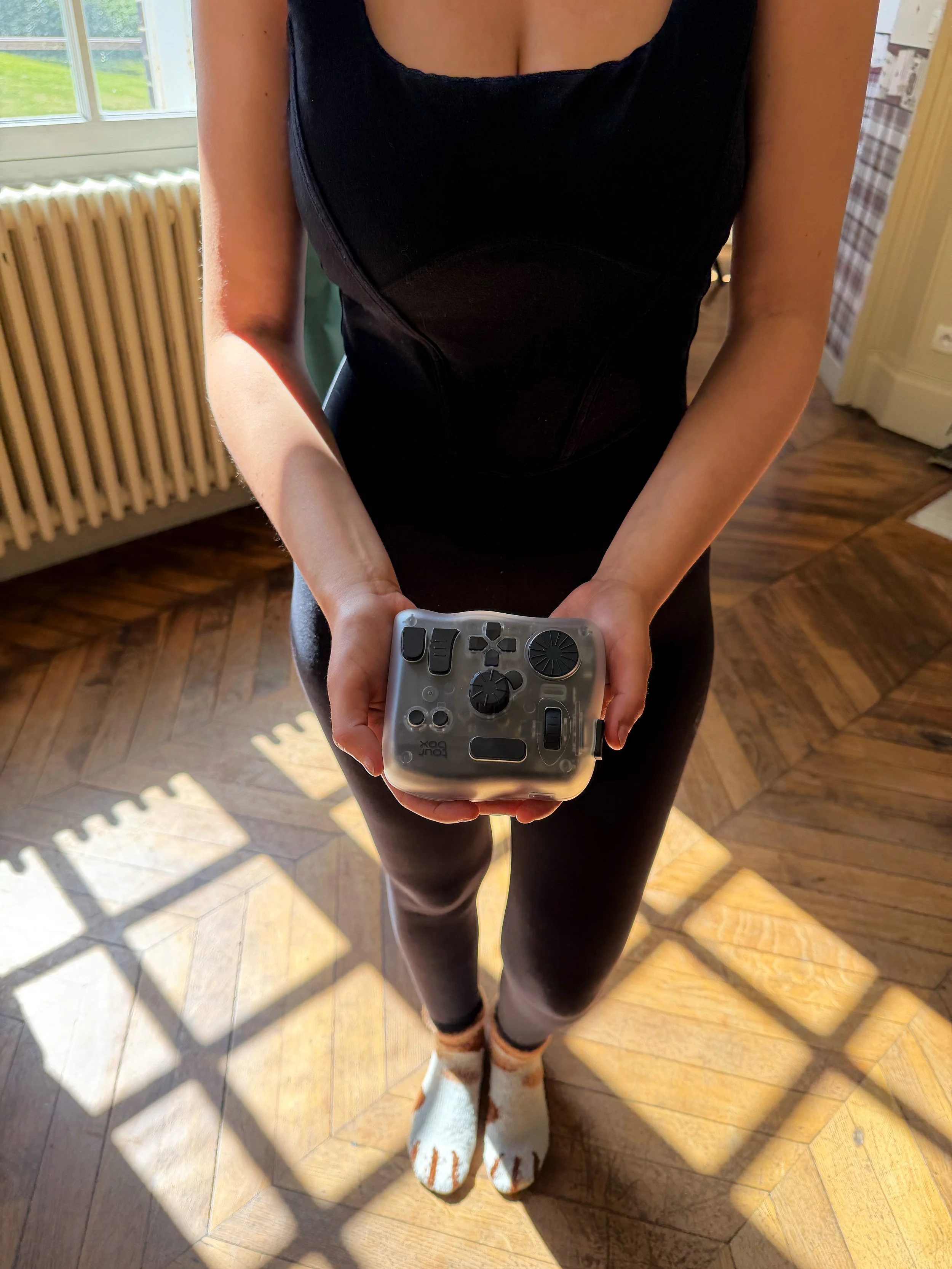
Claire in frame with the TourBox
Getting Started
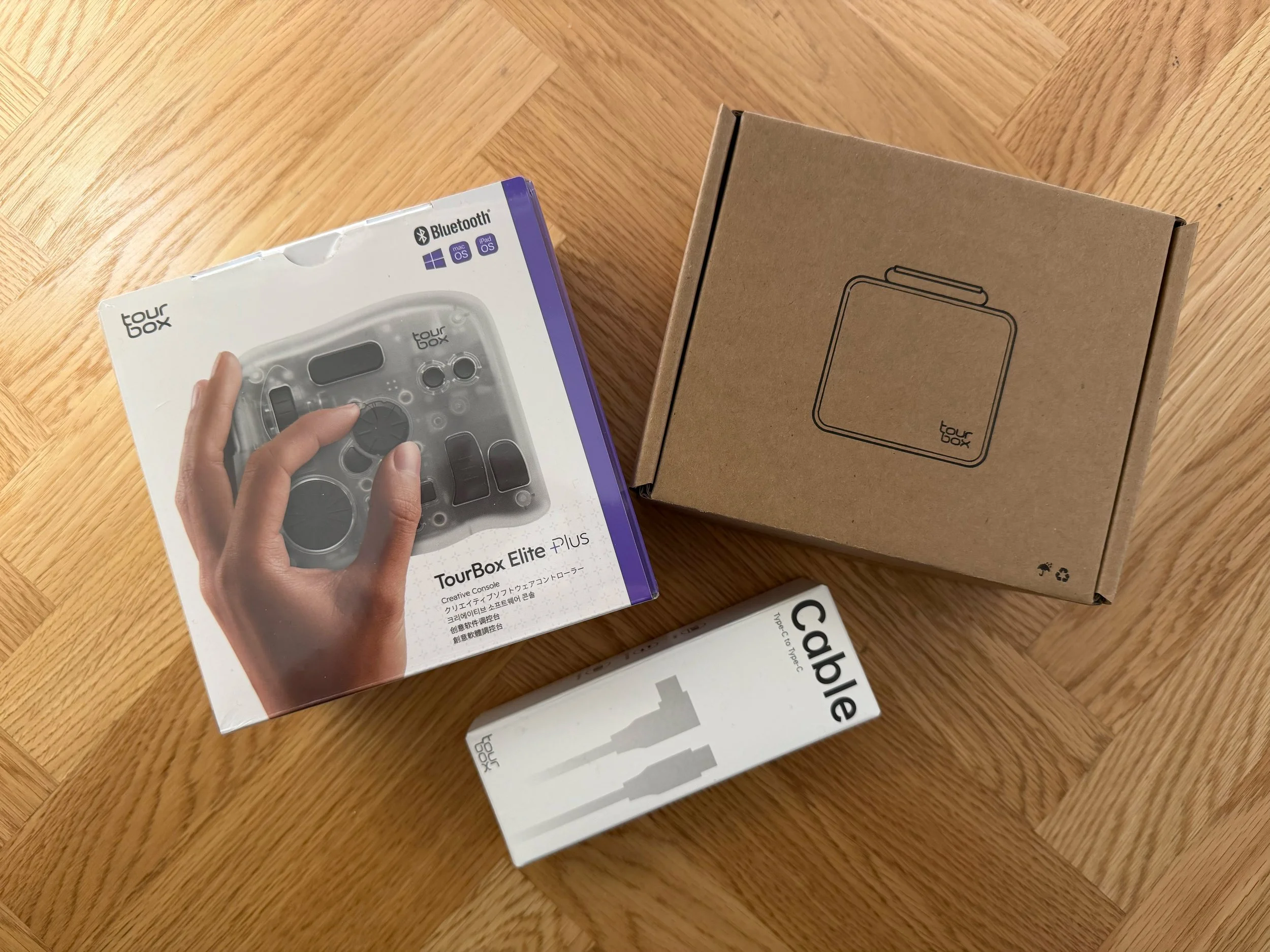
Unboxing was very simple. You’ll find the TourBox, some simple documentation, a USB-A to USB-C cable (feels like that could be USB-C to USB-C these days) and a travel case. You need to download the TourBox Console app from their website to suit your OS and then pair the device with your computer. I was up and running in a matter of minutes.
The console app is very detailed. I’m writing this on a plane and just caught a glimpse of the cockpit with the familiar banks of buttons. The console app is born of the same family, a lot of functionality that can look intimidating until you realise it's all ordered by tool and capability. I have a background in software engineering and was actually rather impressed to see this level of fidelity that had been put together to support the device.
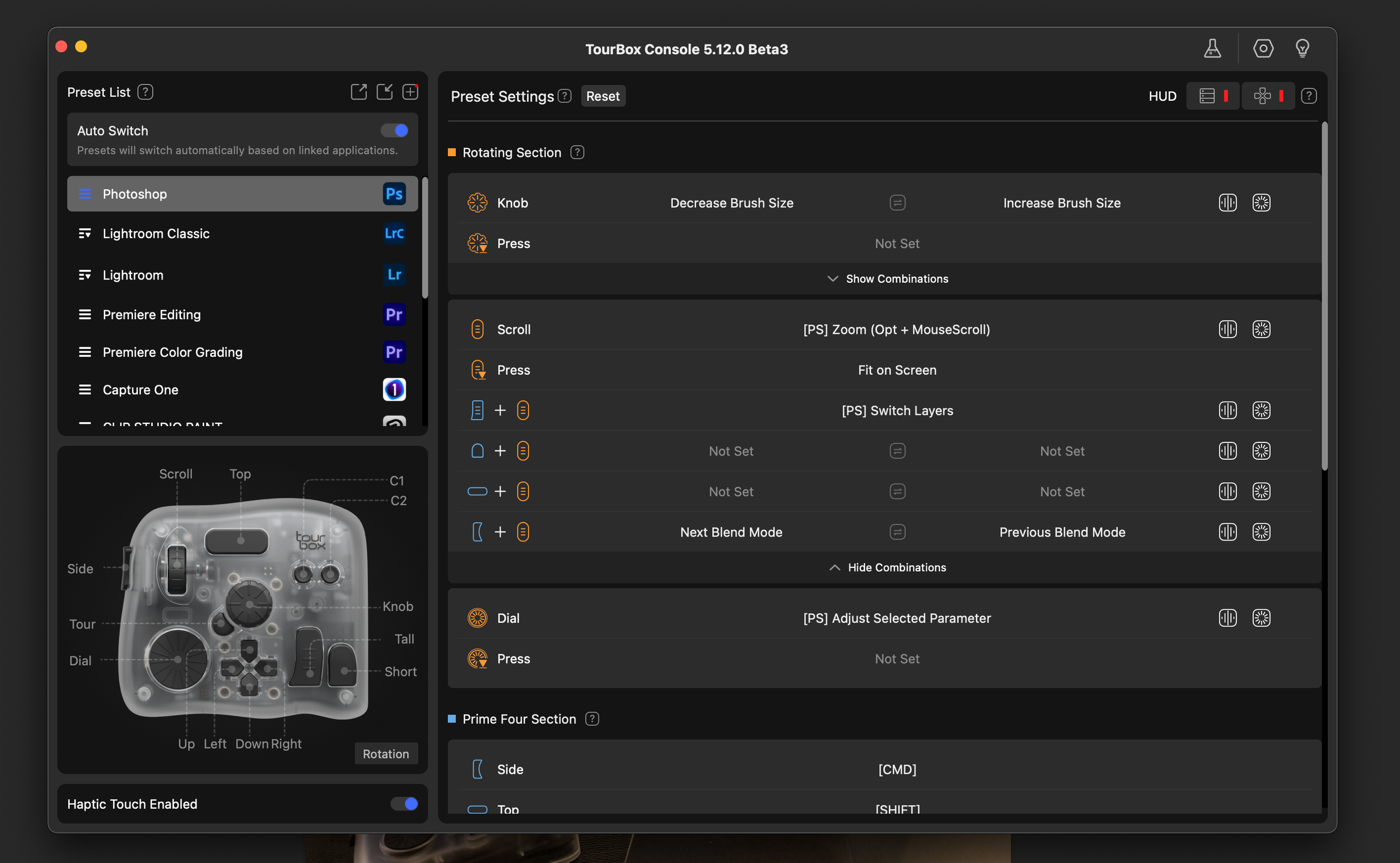
The console app
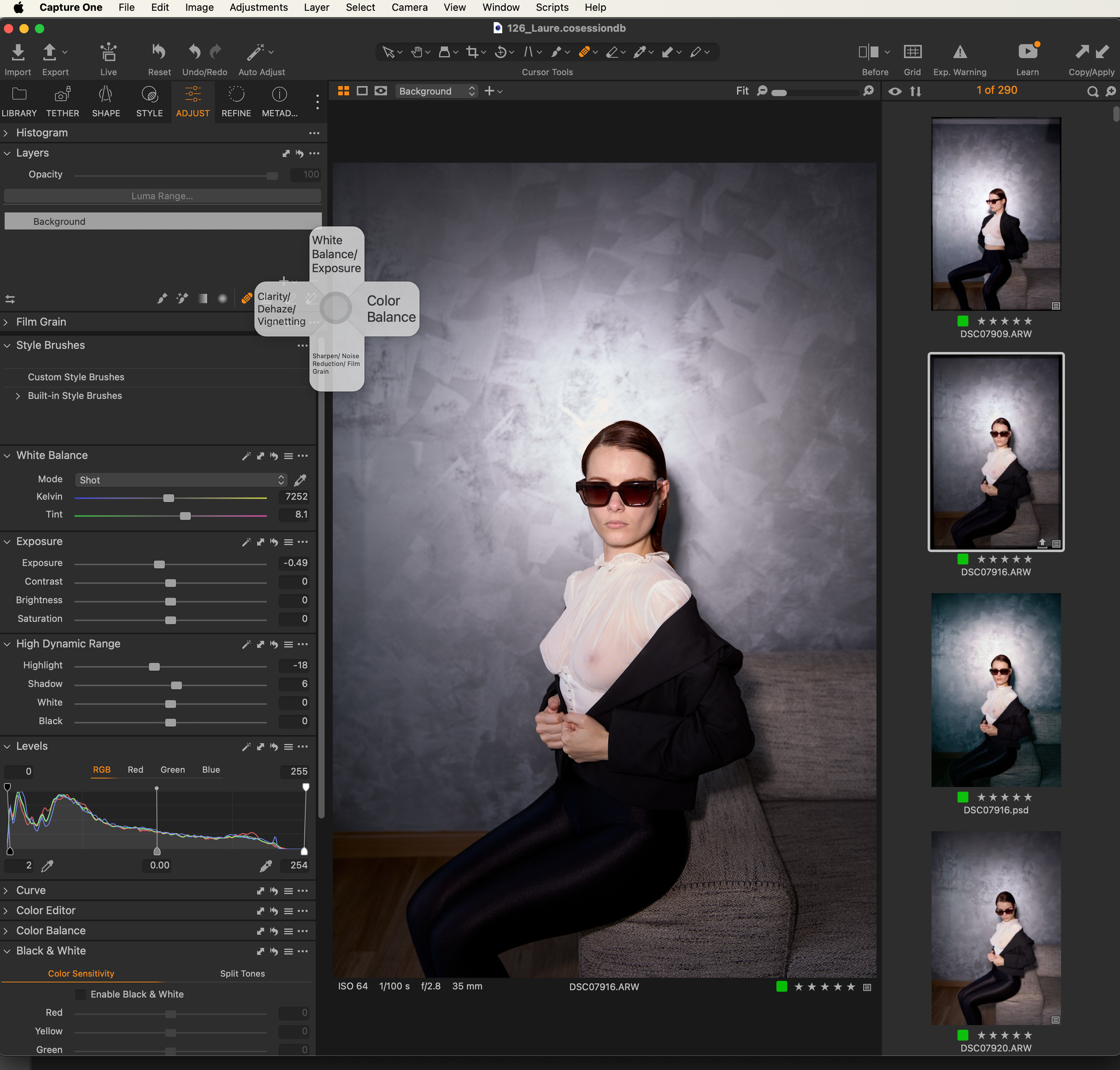
The First Edit
I was about to travel to France for a week of shooting in Normandy, but I wanted to know that this was worth squeezing into my bag (I don’t pack light). I’m one of those people who likes to learn as I go along. Which is another way of saying I don’t read the manual before I start. So I was soon in Capture One fiddling with my usual settings. I really don’t do much at this stage, I just adjust highlights and shadows and play with the curve. I might add contrast and a tiny bit of clarity, but that’s it. If I’m honest, I did all of this with my stylus - see my point about muscle memory.
I then moved the file to Photoshop and started to do a small amount of retouching on a new layer. Flyaway hairs, small blemishes etc. I hate overly processed images, so think of this as a light clean. After that I do some dodging and burning to lift the natural highlights and shadows. All of this involves zooming in and out and changing the size of the brush or tool I’m using. Typically my fingers are busy with the square brackets and plus and minus keys as I move through the steps. This was my first real feel for using TourBox, or more specifically the main jog dial in the centre. I then quickly found the two buttons on the bottom right of the gadget that replace the space bar and option key. After that the two round buttons for undo and redo and it wasn’t long before I was beginning to smile, this was easy and intuitive.
This is a few shots of Laure taken in Paris earlier in the year.
One thing I was quickly pleased about was that I was no longer accidentally pressing CMD + P, instead of CMD + [ This sounds like such a small detail, but it is a regular bump for me. I think I am reducing the size of a brush but am suddenly presented with the Pen tool, which I never use in Photoshop.
It was then that I began to wonder, could this finally replace my keyboard? I’ve posed this question to myself a few times, but never managed to solve it and my editing time is precious so I tend to focus on what I know, vs experimenting with Mac shortcuts etc. Partly why I’ve never rekeyed the shortcut for the Pen tool (I know). So in summary I was liking the out of the box functionality and soon asking if it could do more.
Haptic Feedback
I also really liked the Haptic feedback from the various buttons on the device. I was realising this is what is missing on the keyboard when you adjust the brush size or accidentally hit the wrong key and launch the pen tool. It’s a small detail but that physical feedback is really helpful when feeling your way around the new buttons and training the workflow accordingly.
Macros
Something that would always require the keyboard in my workflow is naming the file when I export it. But in truth my naming convention is always the same:
High res
{filename}-BW-F-Print
Web Ready
{filename}-BW-F-Web
My colour files are the same without the BW and I replace F (Full) with C (Crop) if I also export a crop of the image.
The TourBox Console app has a number of ways to configure the device and this includes custom shortcuts and macros. I was soon playing with a combination of the two, a combined set of keys on the TourBox that launched a macro that would open the export tool in Photoshop and importantly pre-populate the two fields I use regularly. You effectively build a sequence of events, much like a Photoshop Action and the macro plays them when the custom keys are pressed. I struggled to get this to work at first and did need to contact Bobby who soon helped me out. The trick was adding a delay in the steps. This is simply down to how much time (think CPU processing time) it takes to launch the export window and then for the software to be ready for the input field. We’re talking milliseconds, but if you do it too quickly you can miss a step. So by introducing a small delay you can ensure the sequence plays out correctly. See below for the macro I built.
I’ve played with this a fair bit and found that it was more robust if I made these two separate actions. One to launch the export window followed by a separate one to populate the two keys. So what you can see is me pressing two shortcut keys in quick succession. It’s simple, but a big improvement on my workflow and suddenly I’m beginning to think that this could give me cause to retrain my fingers and ultimately adjust my muscle memory.
Irinia Lozovaya inside Photoshop above.
TourBox On Tour
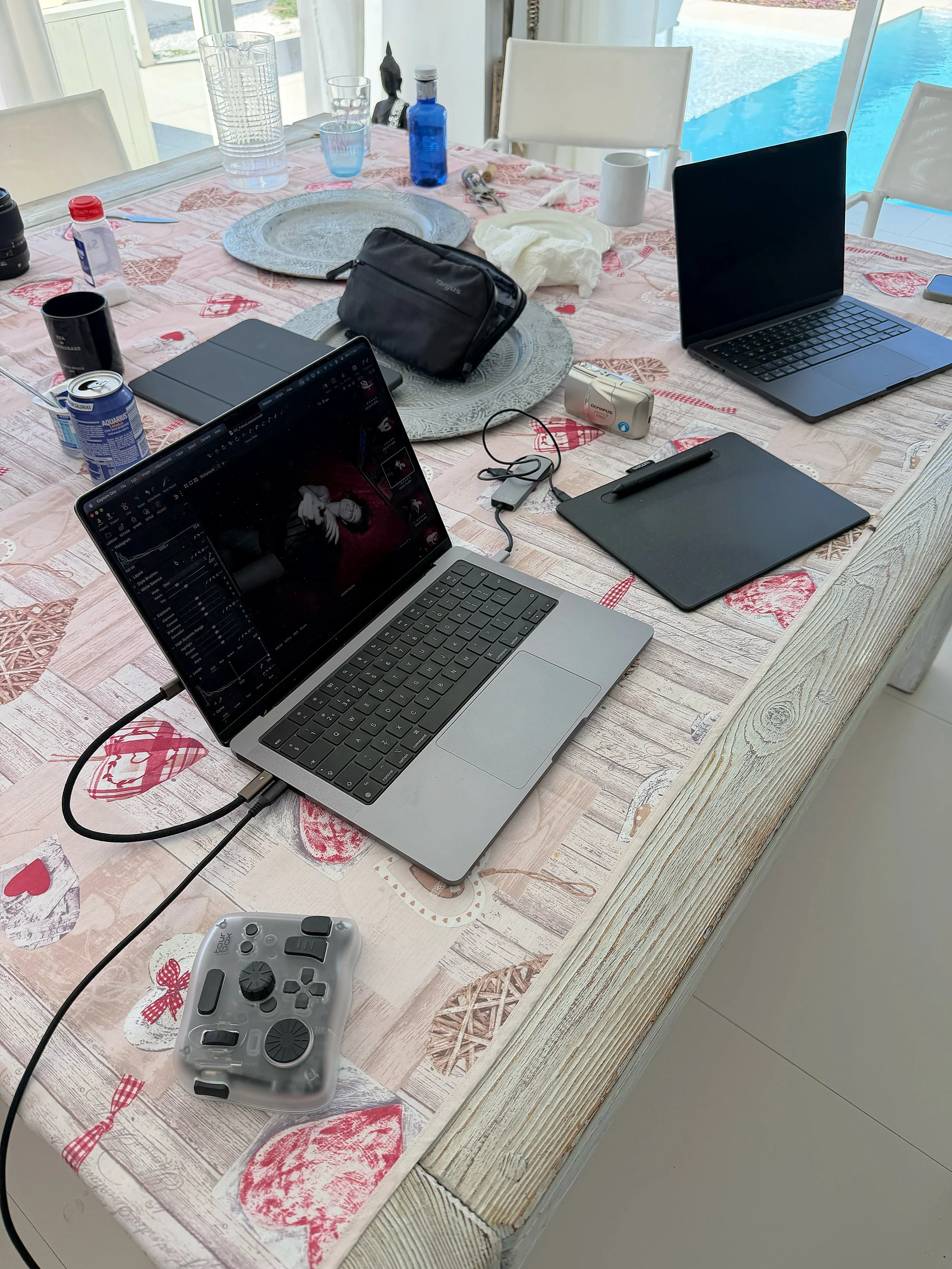
At this point I headed off to France. After a day of shooting there is always a rest, time for a glass of wine and some editing. I was looking forward to editing some shots of Claire I had taken and keen to see how my new portable gadget could help me out on the old kitchen table I was sitting at. I had travelled to France with the same laptop I was using in the UK, but one big difference was that I was no longer plugged into my Apple monitor. I was now just relying on the 14” Macbook Pro display. This nuance is only noteworthy as I had to tweak the mouse coordinates used in my macro as the export window was in a slightly different location on the screen. Not a big deal, it’s easy to adjust. It’s just a shame the macros rely on coordinates rather than identifiable UI fields. (I’m guessing screen readers must be able to identify the name of fields like this).
Other than that, everything was working perfectly and I was quickly editing some photos taken in our chateau that day. During the course of the week I processed many images each one improving my muscle memory and all exported far faster than I was previously used to.
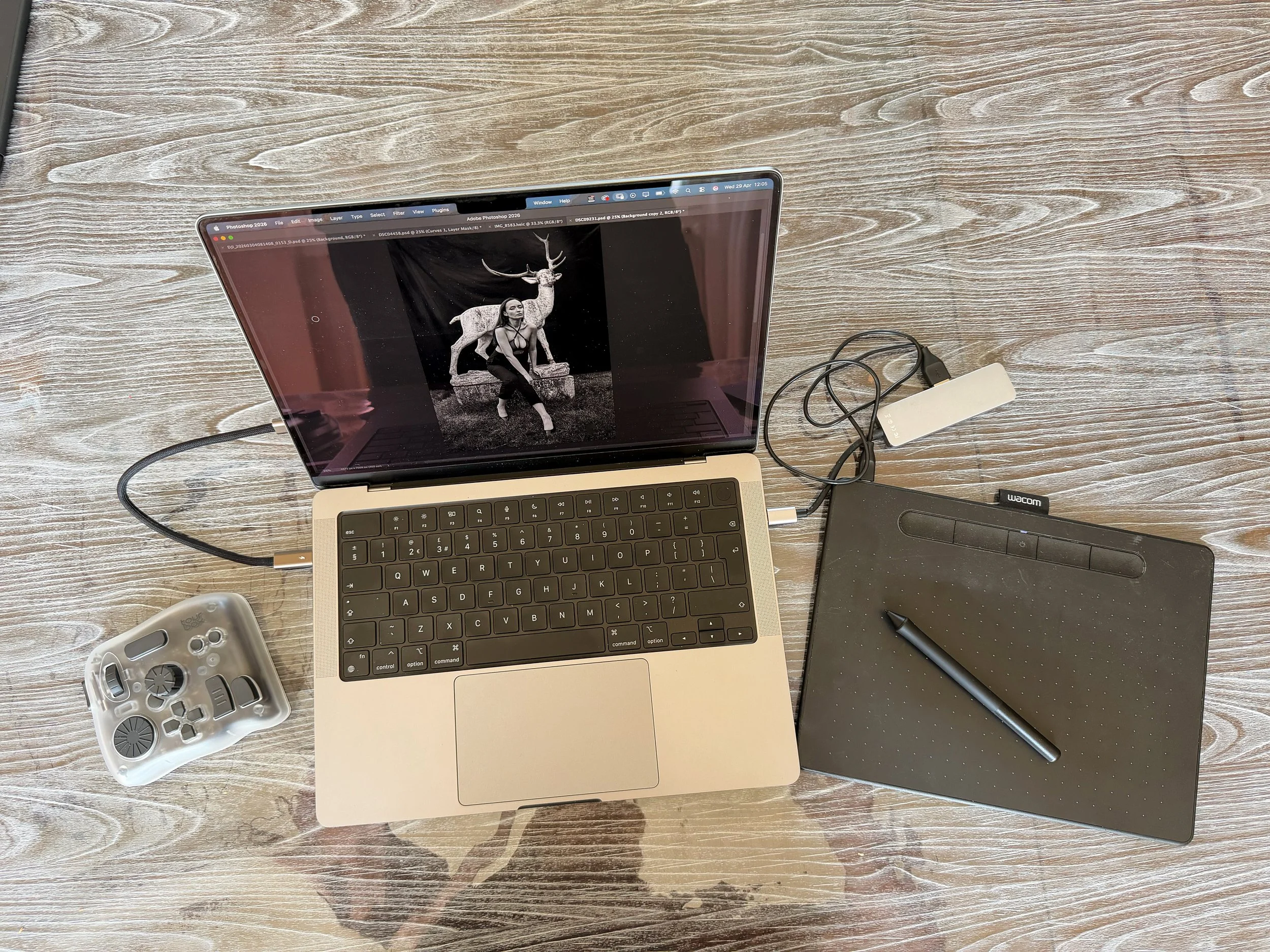
As I mentioned I like to edit with a tablet and stylus. I never travel with a mouse, but I do travel with a small Wacom tablet. This used to be my go-to tablet, but I got so tired with the buggy Wacom Bluetooth driver that I switched to a Huion tablet. Something another friend, also called David, recommended. When I travel I plug in the smaller tablet with a USB cable and use the keyboard for the rest. I was becoming fluent with the TourBox meaning my need to drop and pick up the stylus to use the combined keyboard shortcuts on my laptop was being reduced.
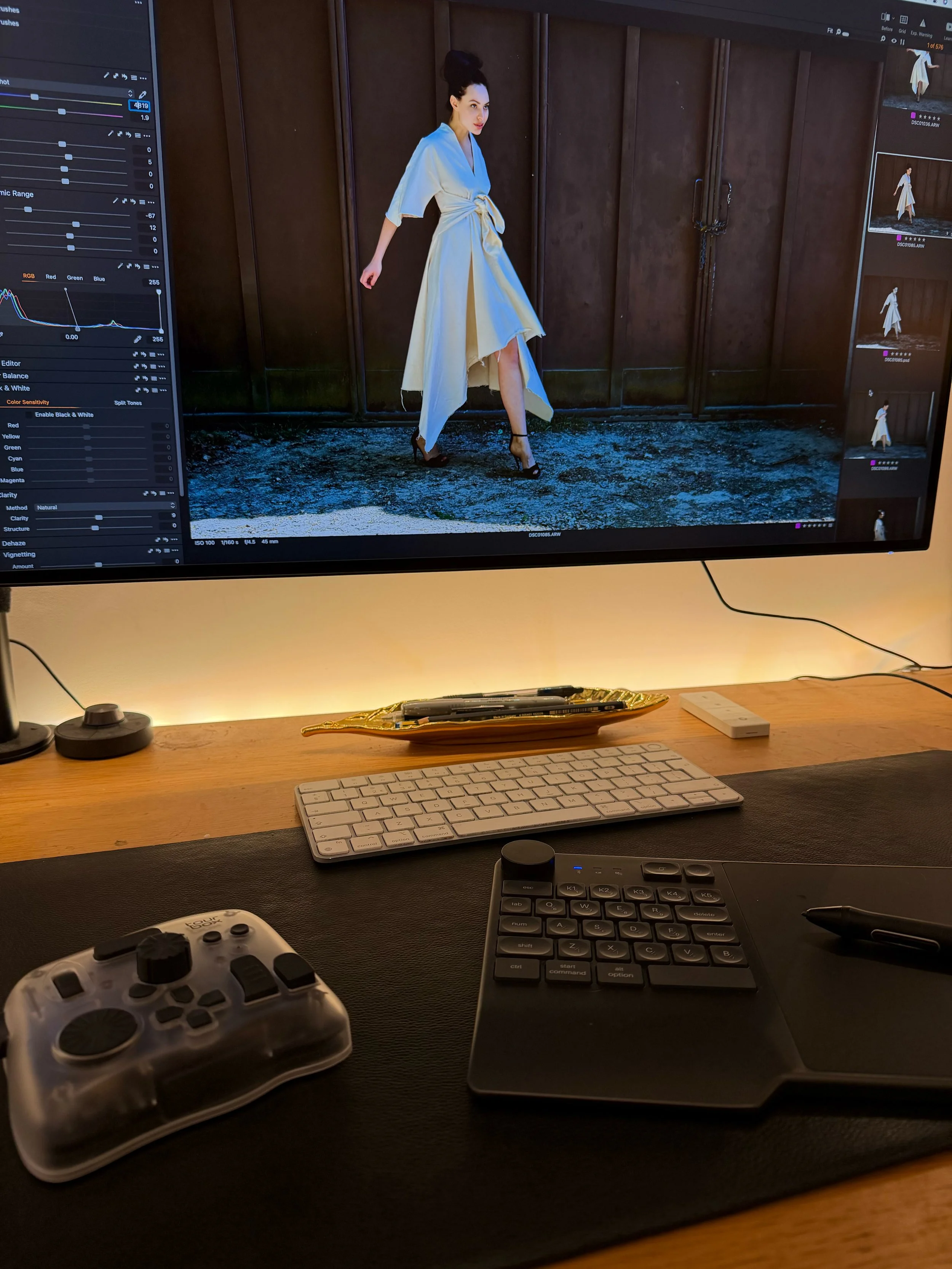
Back home I have a Huion tablet with programmable keys and a jog dial, all of which you can customise (I've been trying to bridge this gap for a while). I’ve made full use of the keys they provide, I even added a shortcut to play and pause music whilst I edit. But I was never able to fully replace the keyboard and as such never saw reason to train myself away from it. But here, in this moment I was starting to think that inflection point might have arrived.
Desktop
Once back in the UK I returned to my studio where I have a more traditional setup and importantly a bigger screen and a different computer, a Mac Studio. Something that is of course obvious is I had paired the TourBox with my laptop and I needed to download the TourBox console app and recreate the same set of macros I had built before as the config is saved to a local library in the OS. My brain immediately went “why isn’t there a TourBox cloud app like Adobe Creative Cloud to sync your settings between devices”.
It’s a nice idea and would be useful, but you’d still have the pairing problem (unless you always used a cable). This is obviously a first world problem and one most people with one setup won’t face.
But I did hit a related issue yesterday. I am currently flying to Spain for my next photoshoot in Ibiza and did some editing last night on my laptop. But when I went to use the TourBox I found it wouldn’t connect, despite it working earlier in the week. Again, it’s a simple and obvious Bluetooth issue, I had to go into the Bluetooth settings and forget the device and then restart the TourBox console app and after that I was back up and running. Importantly my saved settings and macros were still working as they are saved locally.
Victoria in frame inside Capture One.
I’m two thirds of the way through my review and I’m here in Ibiza with a few friends, our goal is to explore the island and take photos. Just like my time in France, we’d make time to edit the images at the end of the day. By now the controls on the TourBox are second nature and I can feel I’m not leaning towards the keyboard. That muscle memory has been retrained and I’m now looking at some of the other features of this little gadget.
I’d taken some images with my drone that were landscape orientated and sharing these on Instagram means a two image carousel. This requires slicing the image in two and then reducing the image size down to a smaller resolution. I use the legacy save for web option in Photoshop and in the export dialogue box reduce the image size down to 2000px wide to prevent Instagram reducing the image for me. This would normally require the keyboard to type in the numeric value, but TourBox has integrated with Photoshop and if the Photoshop Virtual Numeric Keyboard is enabled a new dialogue box appears in the text fields. This means I could use the stylus to tap the numeric keypad that pops up next to the relevant field and type in ‘2000’ to suit.
I’ve played with this particular tool and am a little on the fence. It’s very clever and vital for anyone hoping to get rid of the keyboard, but somehow it’s also a bit of a visual distraction to the user interfaces we all become accustomed to. I’m going to keep it enabled for now, it’s easy to turn it on or off.
Nauiscaa Yami helping demonstrate TourBox inside Photoshop and Capture one in the next few images.
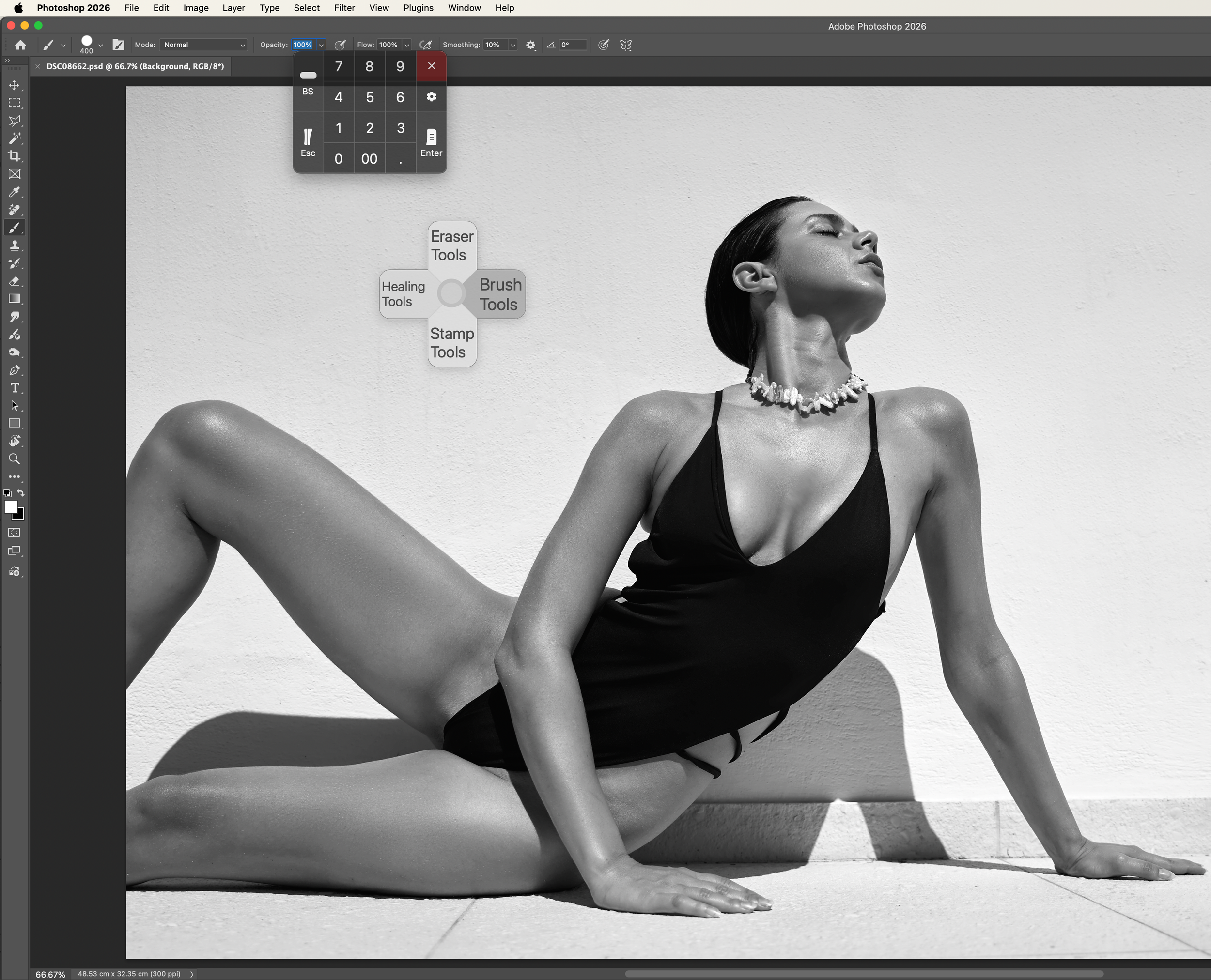
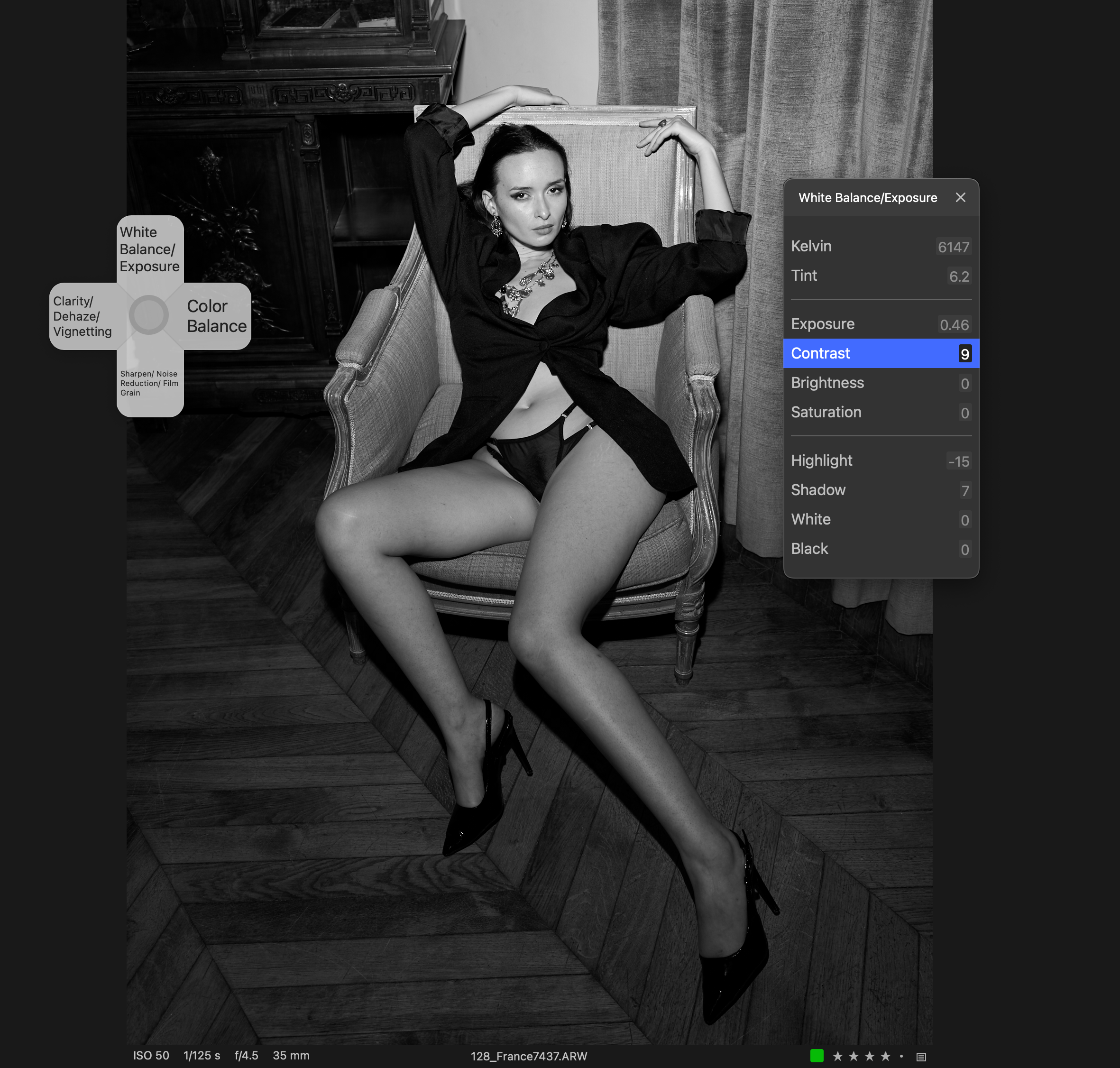
Related to this is a floating D-pad for the up, down, left and right buttons. It appears as a moveable widget that sits above the application you are using and primarily acts as a way to activate the options for the tools you have configured in the D-pad. For example, the right arrow default is the Brush tool, by tapping on the TourBox you see the virtual D-pad highlight in response and the Brush options become highlighted in Photoshop. Plus, if you have the Virtual Numeric Keyboard enabled you can quickly type in the new opacity for your brush, without touching the keyboard. Clever!
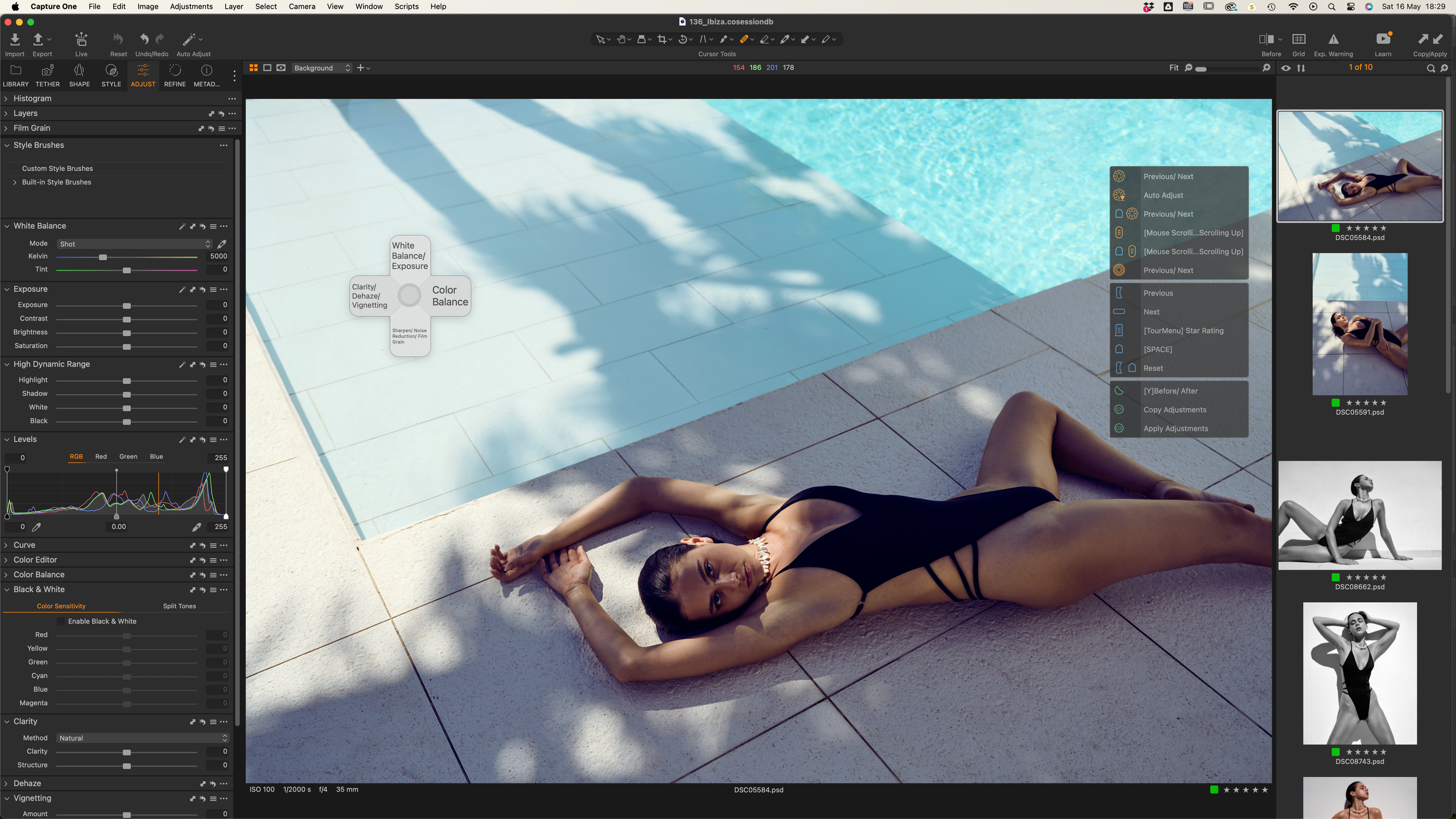
The last one in this family of overlay tools is the Heads Up Display (HUD). This is a floating, semi-transparent menu that you can move about on the screen as a way to remind you of all the various tools on TourBox. Personally I turned this off straight away, it all came down to protecting my screen real estate whilst on my laptop. But I can imagine people keeping it enabled for the first few days as they train that muscle memory.
What I will say is that these tools are all very easy to customise and if you have a two screen set up you can move the HUD and D-pad to the other screen which, for me, makes them more appealing.
What I think I am most impressed by is that these things exist in the first place. As a user you expect the TourBox to work and do its job. But for these additional software features to be regularly added is a great sign of the commitment behind their product.
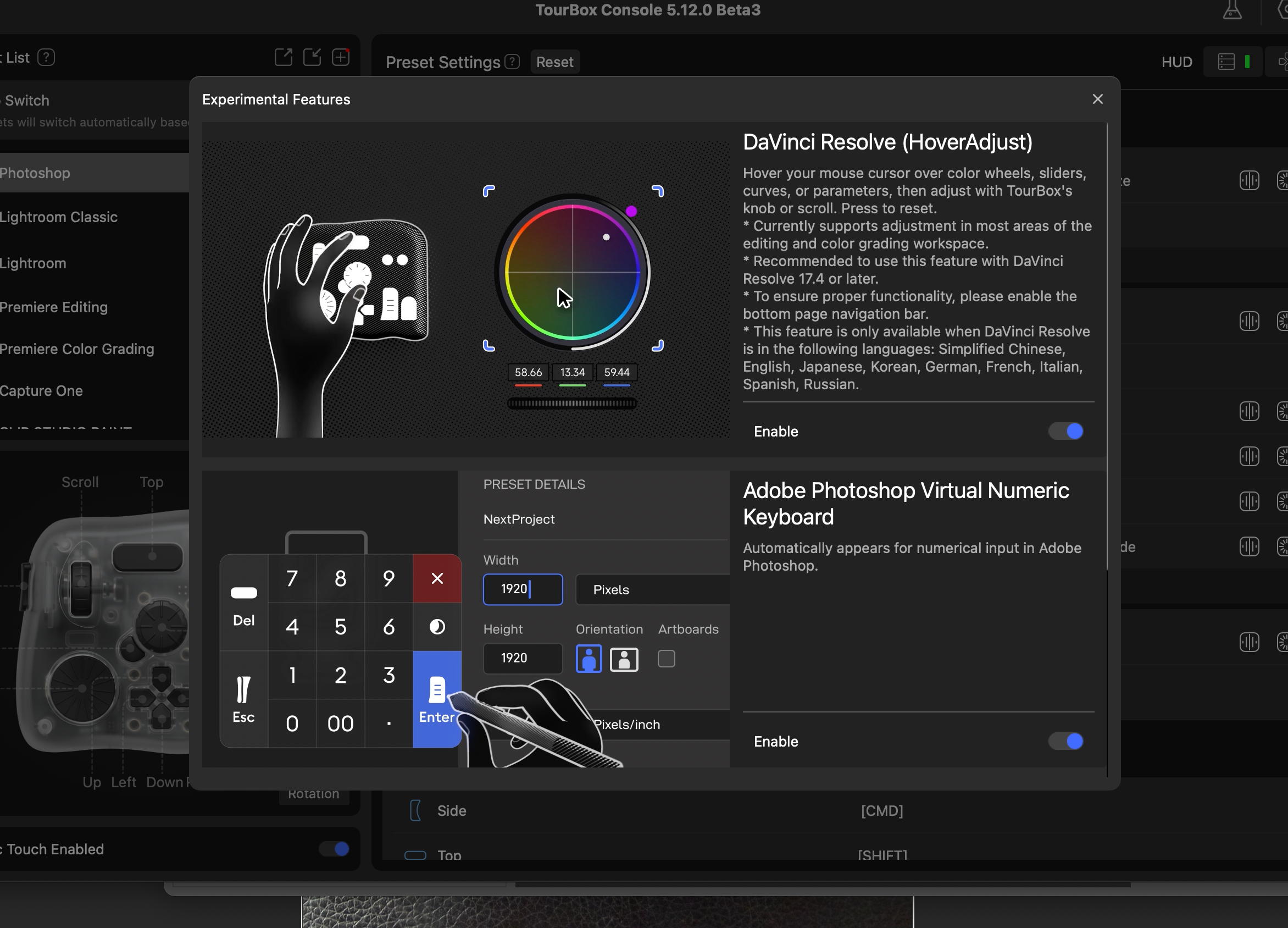
Experimental Features in the Console App
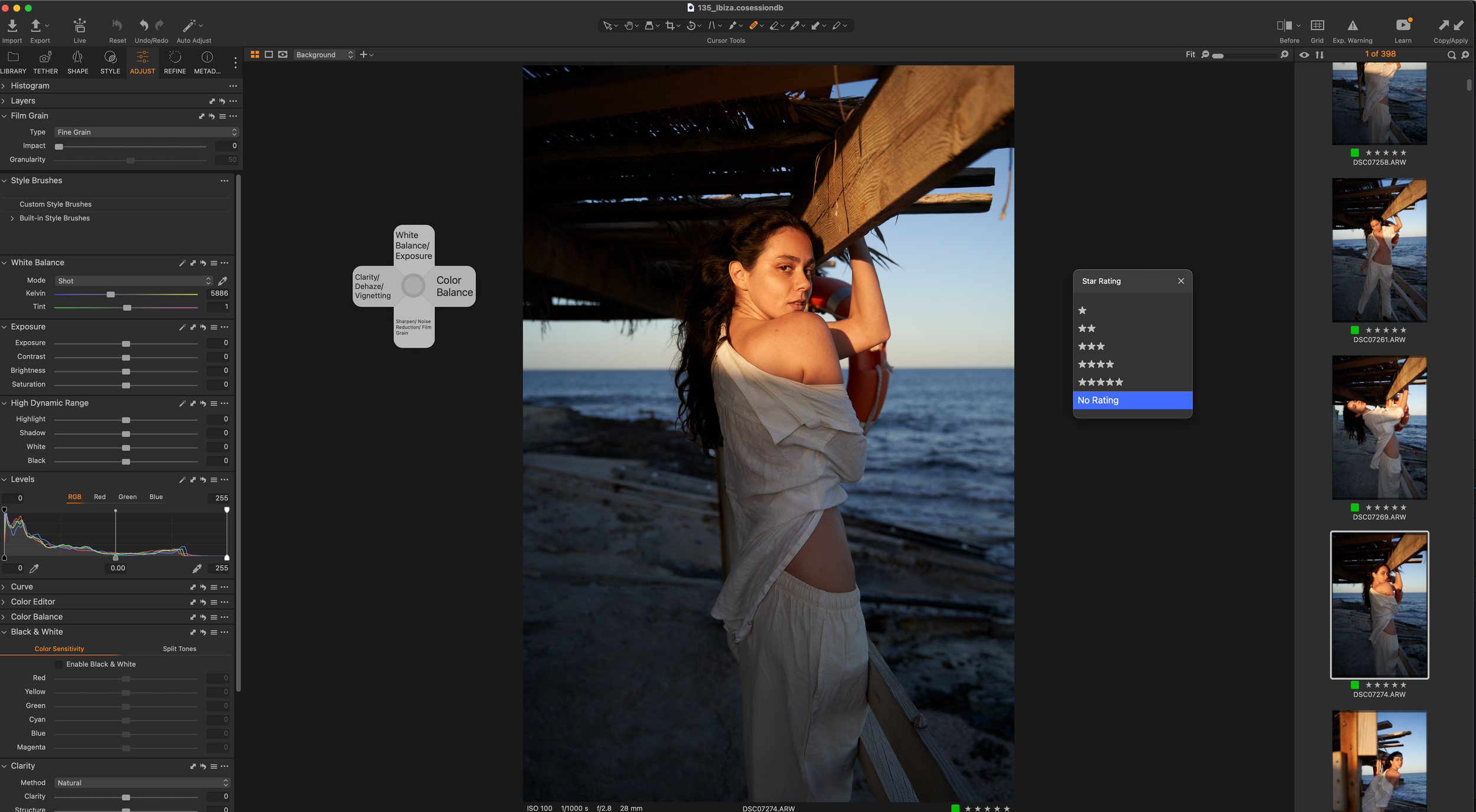
I like to rate my images in Capture One quite quickly after a shoot. Ideally I do this alongside the model or team I am working with. I like to rate my images with a 5-star and use the other numbers to represent the chices of the model or others. Then I can order all images by those that have been rated and from there cull them down to suit. The Tall button on the right of the device is pre-programmed to open a rating dialogue window and from there it is easy to select the number with a stylus. But, if you are rating with others, then the numbers on the keyboard are quicker. So I changed the button in the Console app to rate an image as 5-stars.
Now when I go through my images on my own, I scroll through the set with the round dial on the left and tap the tall button when I like an image. This was a nice change to adopt. I’m always happy to get rid of a right click mouse action.
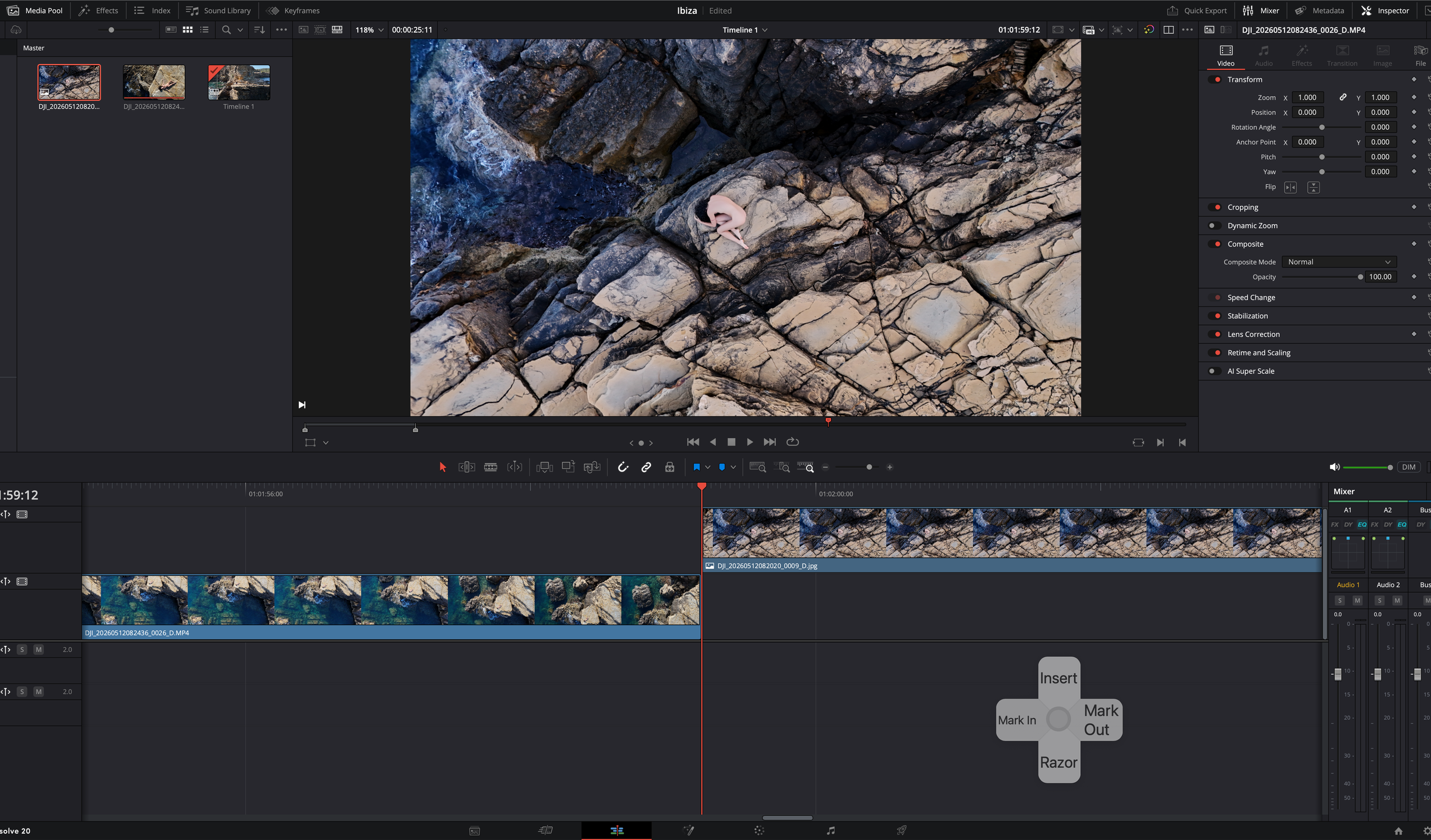
Whilst in Ibiza we visited a truly wild location, a layer cake of different colour rock that has flat surfaces at different heights. This place once served as a natural harbour but for us it would be a location to capture some images with a powerful backdrop. Just after the sun came up I used my drone to film Tezz who was warming up on a large piece of rock that jutted out into the sea. She saw me filming her and suddenly started to dance in time with me spinning the drone around her.
Back at our villa I used DaVinci Resolve to edit the video, cutting out some longish clips and adding some still images that we’d shot minutes before. It was nice to see TourBox has also been integrated with DaVinci Resolve, the timeline in the edit tab being easy to navigate with knobs and dials that I was now familiar with. I’m no power user when it comes to video so I won’t deep dive into it here as my focus is on photography. But suffice it to say this little gadget does pack a lot into it.
Would I keep using TourBox?
I’m back home now and I’ve got a lot of editing ahead of me. Time is always a factor and if there’s a way to trim even a small amount of friction from that process, I’m interested. After three weeks of using TourBox across France, Spain and the UK, I can confidently say it has earned a permanent place on my desk, to the left of my tablet.
What surprised me most wasn’t the shortcuts or even the macros, it was the physicality of the thing. There’s something satisfying about reaching for a dial or button instead of remembering another keyboard combination.
If you enjoy driving a car there’s a hint of that satisfaction of a manual gear shift, it is tactile and deliberate, compared to the more abstract nature of keyboard shortcuts. But there are also elements of automation that are equally welcome.
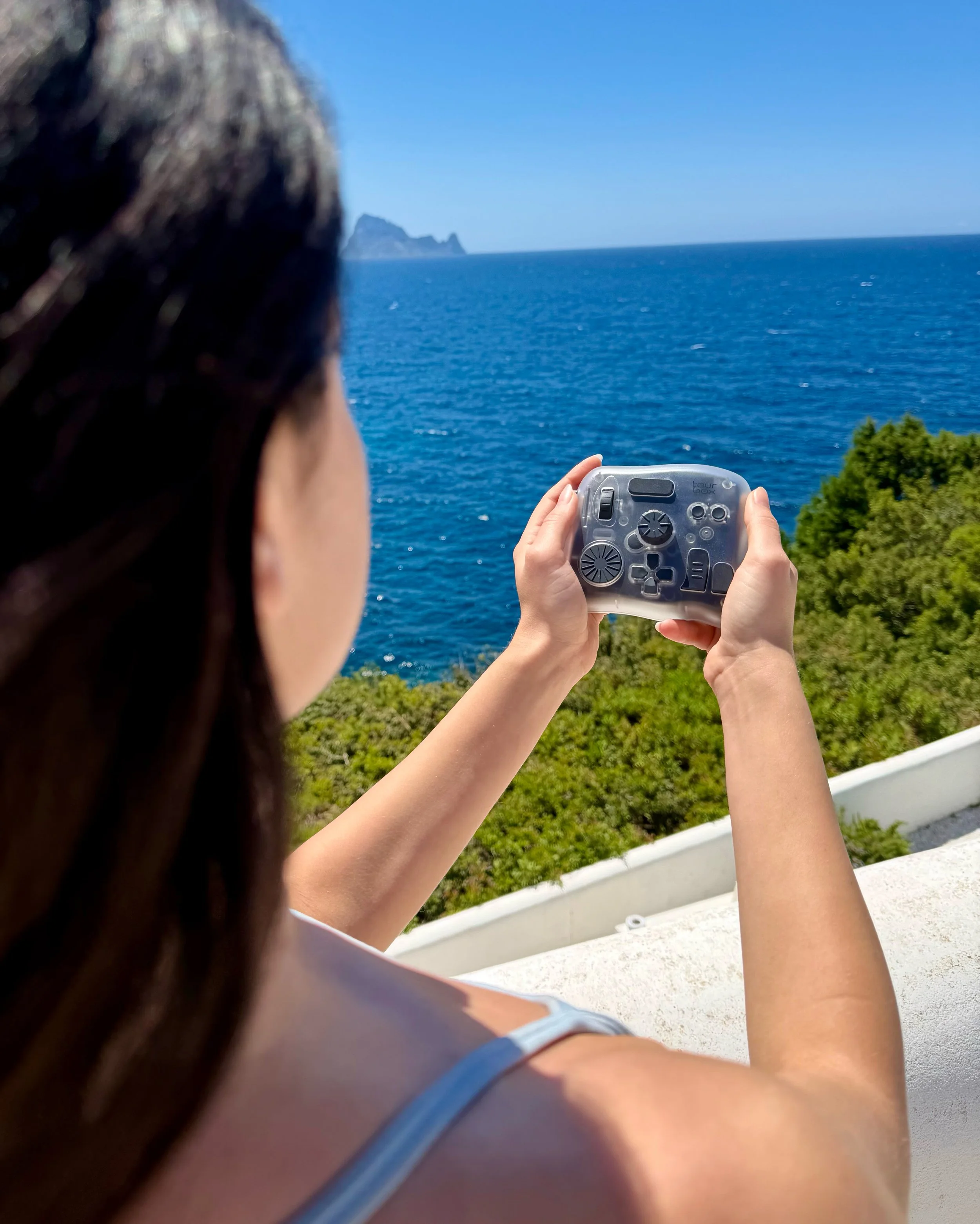
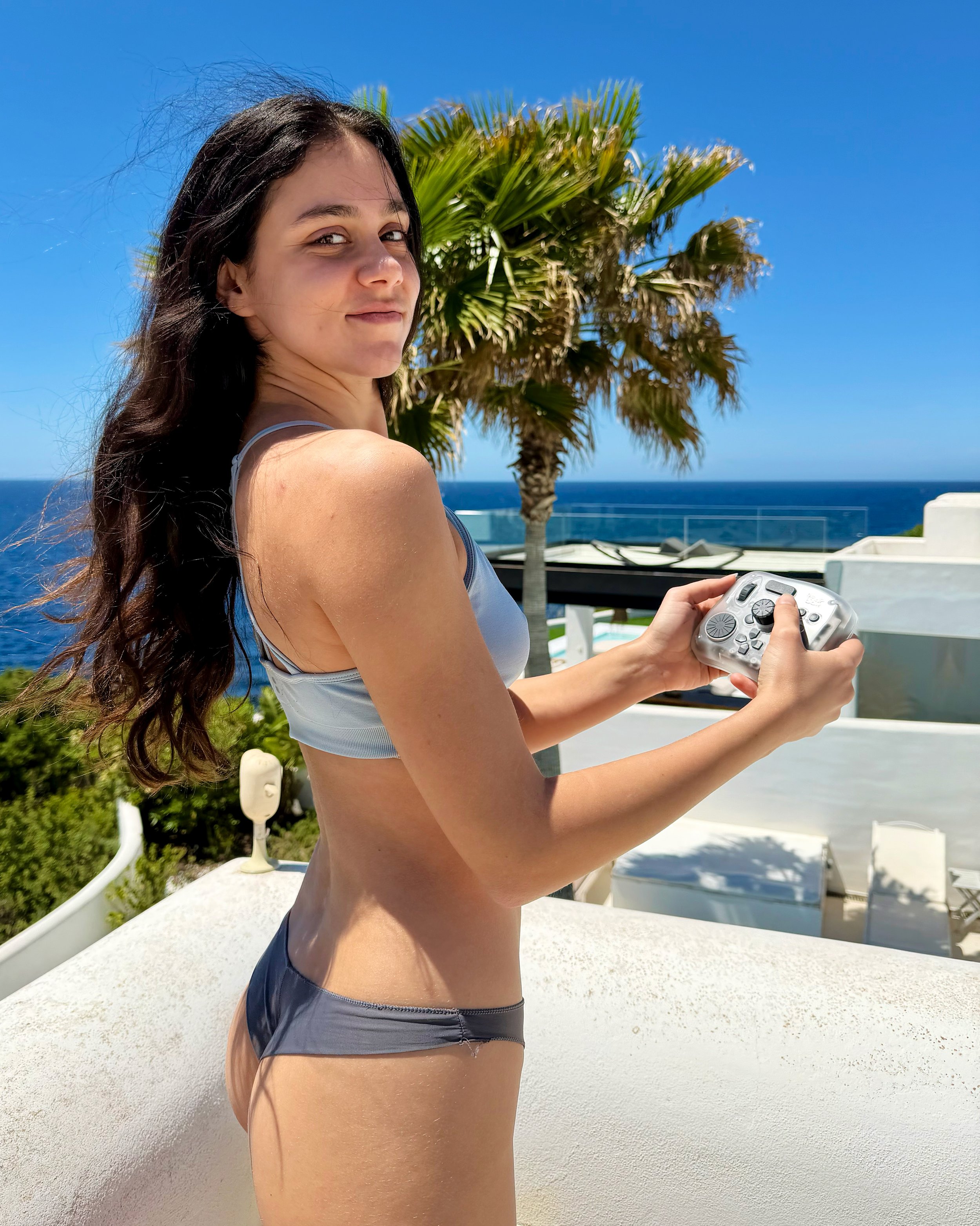
That is Nausicaa Yami holding the TourBox in Ibiza.
More importantly, it changed my habits. That’s probably the highest compliment I can give a tool like this. I didn’t expect to retrain years of editing muscle memory, but somewhere between France and Ibiza I realised I’d stopped reaching for the keyboard.
I still feel like I’ve only scratched the surface of what it can do, but that’s part of the appeal. TourBox doesn’t just speed up your workflow, it encourages you to rethink it.